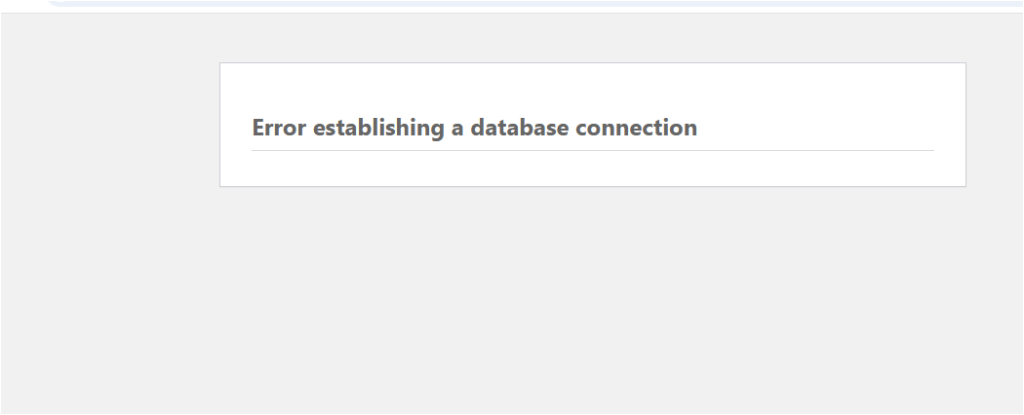
One of the most common and frustrating issues WordPress users face is the “Error Establishing a Database Connection” message. This error means WordPress cannot communicate with your MySQL database — and your website goes offline instantly.
In this guide, you’ll learn why this happens and how to fix it step-by-step, even if you are not a technical expert.
✅ What Causes the WordPress Database Connection Error?
This error usually happens because:
- Wrong database login credentials
(DB name, username, password, host) - Corrupted WordPress core files
- Corrupted database
- MySQL server is down
- Too much traffic causing resource overload
- Hosting misconfiguration
How to Fix “Error Establishing a Database Connection”
Follow these steps one by one:
1. Check Database Login Credentials (wp-config.php)
Your site’s database details are stored in the wp-config.php file.
Go to:
public_html/wp-config.php
Check these lines:
define('DB_NAME', 'your_database_name');
define('DB_USER', 'your_database_user');
define('DB_PASSWORD', 'your_database_password');
define('DB_HOST', 'localhost');
✔ Fix Tips:
- Make sure DB name, user, password are correct
- On many shared hosts,
DB_HOST=localhost - On Cloud hosting, it may be:
127.0.0.1- or a custom IP
If any value is wrong → correct it and save.
2. Repair the WordPress Database
Add this line inside wp-config.php:
define('WP_ALLOW_REPAIR', true);
Then visit:
https://yourdomain.com/wp-admin/maint/repair.php
Click:
- Repair Database or
- Repair and Optimize Database
After repair, remove the line from wp-config.
3. Check if MySQL Server is Running
If you have cPanel:
👉 Go to cPanel → MySQL Databases
Check if MySQL is active.
If the server is overloaded, restart MySQL (VPS users):
service mysql restart
4. Fix Corrupted Core Files
Sometimes WP core files get corrupted.
To fix:
- Download fresh WordPress from wordpress.org
- Upload via FTP
- Replace only:
wp-adminwp-includes
- Do NOT replace
wp-content
This will not delete your files.
5. Check Database User Privileges
In cPanel:
Go to:
MySQL Databases → Add User to Database
Make sure your DB user has:
- ALL PRIVILEGES ✔
6. Fix High Traffic Overload
If your site is receiving too many visitors:
- Enable caching plugin
- LiteSpeed Cache
- WP Super Cache
- Enable CDN (Cloudflare)
- Upgrade hosting plan
Your site might come back once load reduces.
7. Contact Your Hosting Provider
If none of the above works, your MySQL server might be down or corrupted at host level.
Tell them:
“Please check if the MySQL server is running properly and confirm my database credentials.”